
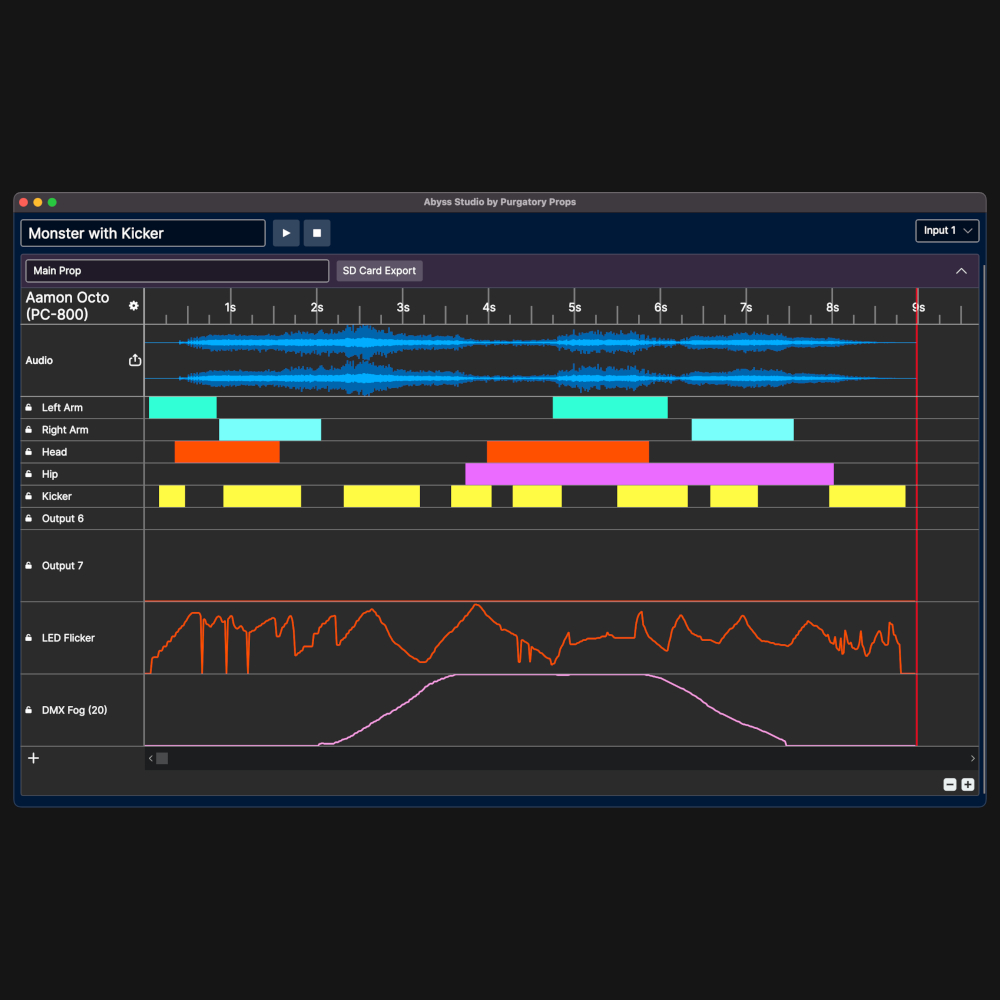


Abyss Studio is designed to give you full control over your Purgatory Props controllers!
Basic Use
Right click anywhere on the timeline to set your recording length (red line).
Left clicking on the timeline header (where the times are) or on the audio track will set a green cursor, this can be used for alignment and playback.
How to Save to SD Card
In Abyss Studio use the "SD Card Export" button to export the program to the SD card of your choice. If Abyss Studio detects your firmware is out of date (looks for a "version.txt" file in your SD Card) you will be prompted to update the firmware.
After the export finishes, insert the SD card into your controller and it will load the program.
How to Open from SD Card
If you make a program using the buttons on your Octo and you want to load that program into Abyss Studio you can follow the "Cloning" process in the User Manual. This will save the program from the device onto the SD Card.
Then, insert your SD Card into the computer and use the "SD Card Open" option when starting Abyss Studio, this will allow you to select your SD card and load the program.
Easy Updates
Abyss Studio is designed to automatically update itself, you'll receive prompts to update to the latest versions when they are available.
Cross Platform
Abyss Studio was designed from day 1 to support Windows, Linux, and Mac (arm) computers. We thoroughly test all new features on each system to ensure compatibility.
View Release Notes for Versions